 Mailpipe
What about verification codes?
Mailpipe filters recognizable verification codes, automatic replies and promotions on your Mac. Only remaining new messages within your authorized scope reach your agent.
AI replies for Apple Mail
Connect your usual agent to Apple Mail. Open a reply to review a prepared draft or ask for one while you write.
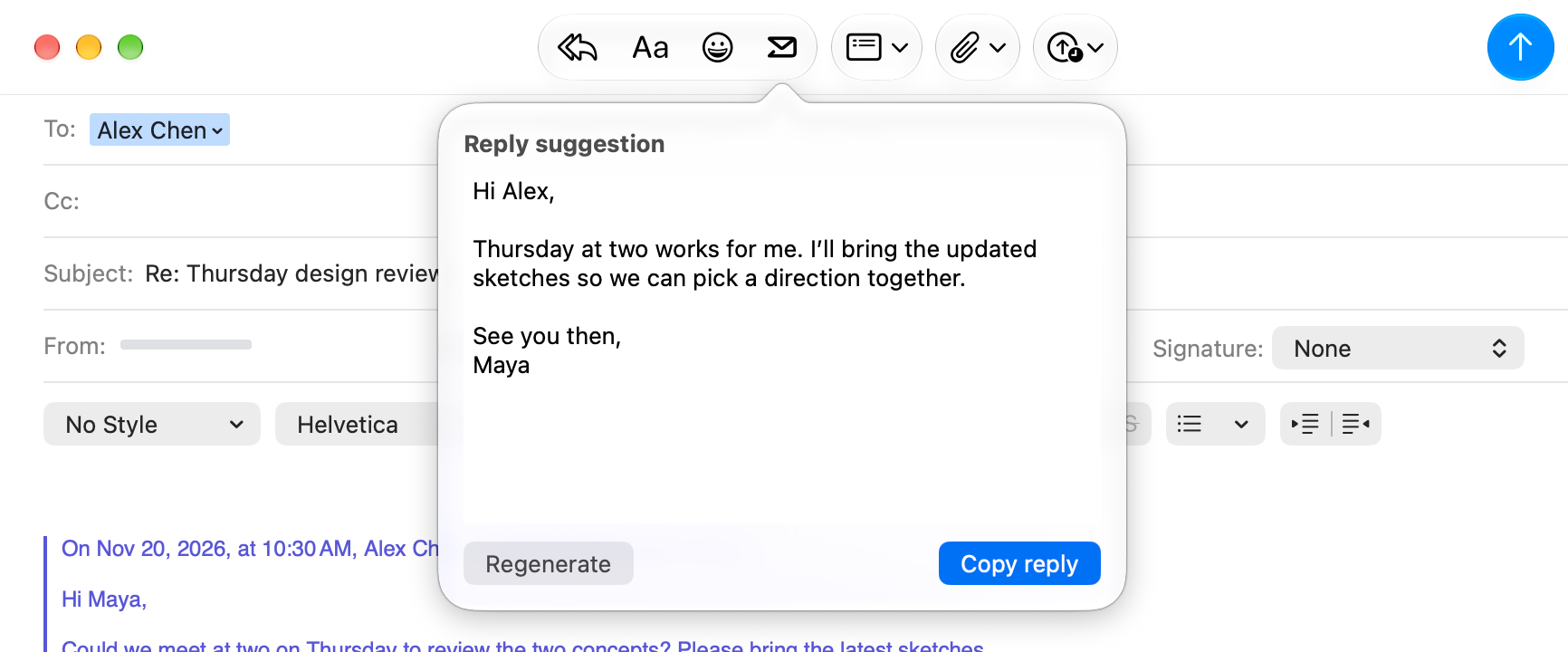
In Apple Mail, reply to or forward a message. Click the Mailpipe envelope in the top toolbar, shown here just to the right of the smiley face.
 View full size
Edit the suggested reply or click Regenerate for another version. Click Copy reply, paste it into your message, then send it when you’re ready.
 View full size
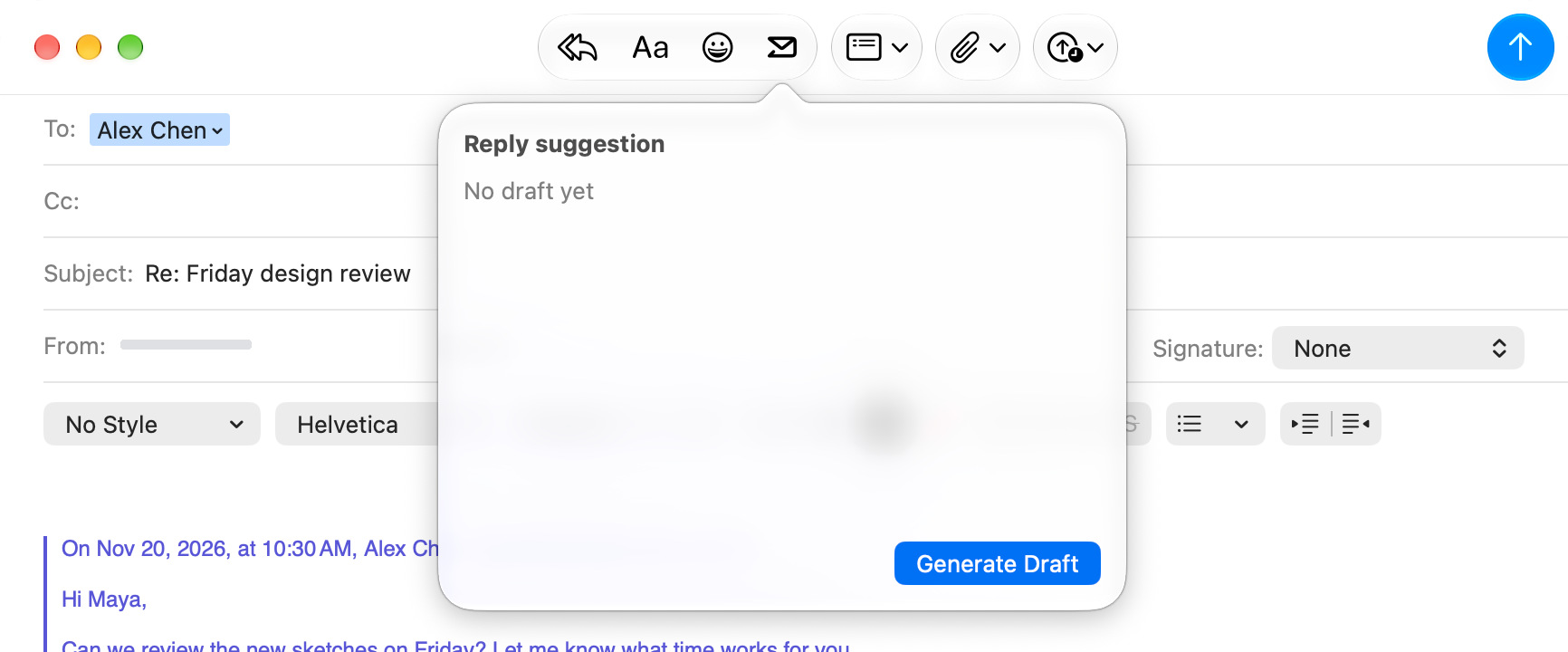
If a reply hasn’t been drafted yet, click Generate Draft to ask your connected agent for one.
If Mailpipe can’t identify the original message, click Choose Existing Draft and select it by sender and date.

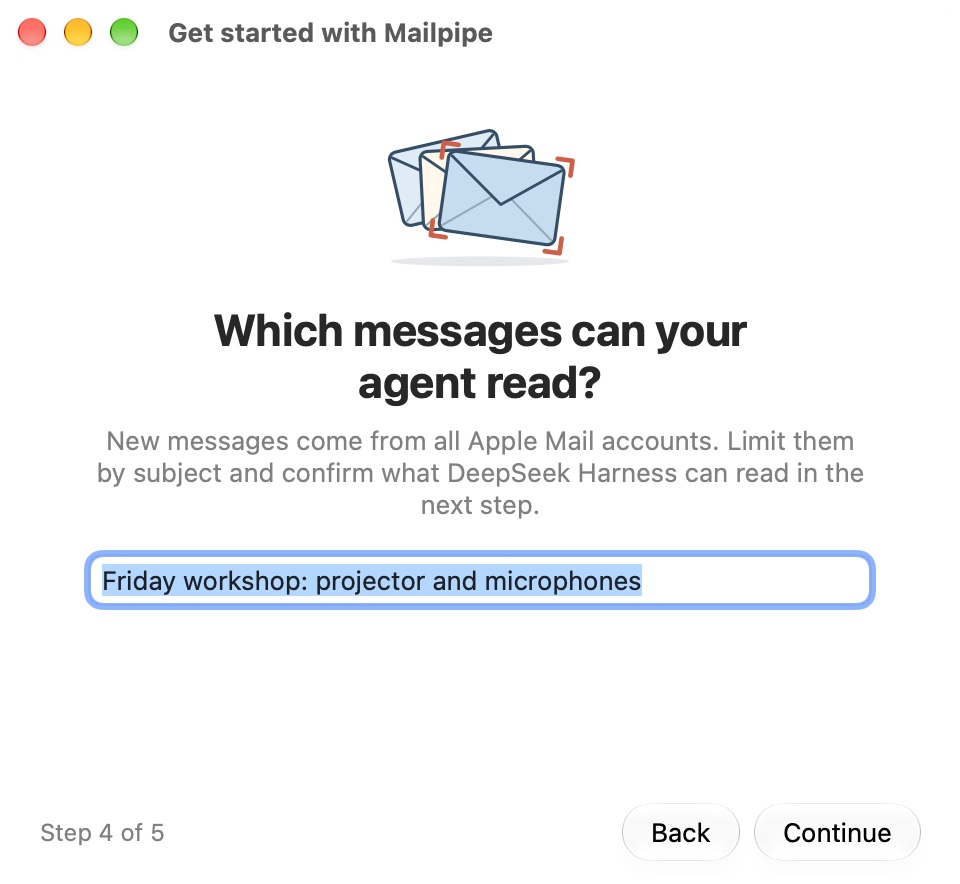
Try it with a workshop inquiry. Enter its full subject in Settings. Once authorized, your agent will draft replies only to new messages with that exact subject.
Leave the subject blank to include new messages from all Apple Mail accounts. Pause processing or revoke access at any time in Settings.
Mailpipe filters recognizable verification codes, automatic replies and promotions on your Mac. Only remaining new messages within your authorized scope reach your agent.
Your agent receives the subject and body of authorized messages. Its configuration determines the model and cost. Attachments are excluded and drafts stay on your Mac.
With DeepSeek Harness, Mailpipe can read public diffs from GitHub pull requests linked in your mail. Using your GitHub account requires your confirmation.
Install one of these CLI versions. Codex CLI uses GPT-6.2 Sol. OpenClaw and Hermes Agent use the official DeepSeek Flash model.
Read the Swift code to see which parts of a message reach your agent and how the Mail extension handles a draft. Mailpipe’s own code is MIT-licensed. You can build it yourself or propose a change on GitHub.